
A birthday photo taken in a restaurant can be one of the most meaningful images in your library, yet Apple Photos may show no place at all. That absence is common: GPS is less reliable indoors, and a photo received through a messaging app or imported from a camera may arrive without location metadata. The right way to add location to indoor photos is not to treat every blank field as an invitation to guess. It is to look for evidence, make the proposed place visible, and confirm it before changing anything.
A location tag is useful because it restores context. It lets you find the dinner from a specific trip, group family events by place, and make a large library easier to revisit. But it also becomes part of the record. A pin placed at the wrong hotel, airport, or city can be more misleading than no pin at all.
Why indoor photos often have no location
A phone usually derives a photo’s location from GPS, assisted positioning, Wi-Fi, and cellular signals. Outdoors, with a clear view of the sky, GPS may be available quickly. Inside a home, museum, stadium, or restaurant, the signal can be weak or unavailable. The camera still records the image and its capture time, but it may not have a location fix to save alongside it.
The same gap appears for other reasons. Scanned prints have no original GPS record. Images saved from WhatsApp or other messaging apps can lose metadata in transit. AirDropped files may be intact, but edited exports are not always. Dedicated cameras from Canon, Nikon, Sony, and Fujifilm frequently record precise capture times without recording coordinates.
These are different causes, but the recovery question is the same: what can the surrounding library prove about where this photo was taken?
Add location to indoor photos from timeline evidence
The most dependable evidence often sits immediately before and after an untagged image. Imagine three photos in chronological order: an outdoor arrival shot at a known restaurant at 7:12 p.m., an indoor dinner photo without location at 7:16 p.m., and a tagged street photo outside the same restaurant at 7:24 p.m. The four-minute and eight-minute gaps support a strong, understandable proposal. The indoor image was very likely taken at that location.
Now change the example. A tagged photo appears at a hotel in Chicago at 2:00 p.m., followed by an untagged image at 5:30 p.m., then another tagged image at an airport at 9:00 p.m. The timeline provides context, but it does not justify a precise pin for the 5:30 photo. There may have been several stops in between. A careful tool should show that uncertainty, not turn a broad possibility into a confident location.
This distinction matters when you are repairing hundreds of photos. Manual tagging can encourage shortcuts: select an album, choose the city, and apply it everywhere. That may be adequate for a clearly contained event, but it can also flatten the details that make a library trustworthy. A family vacation may include multiple hotels, museums, restaurants, and trailheads on the same day.
Start with reliable anchor photos
Anchor photos are images that already have credible location data. They might be outdoor iPhone photos, screenshots from a place you visited, or camera images paired with a separate GPS track. Their timestamps and coordinates establish the boundaries around a missing location.
Before accepting an inferred place, inspect both anchors. Do they point to the same place? How much time separates them from the untagged photos? Does the sequence make ordinary sense? A five-minute gap between photos at the same venue is very different from a two-hour gap across a city.
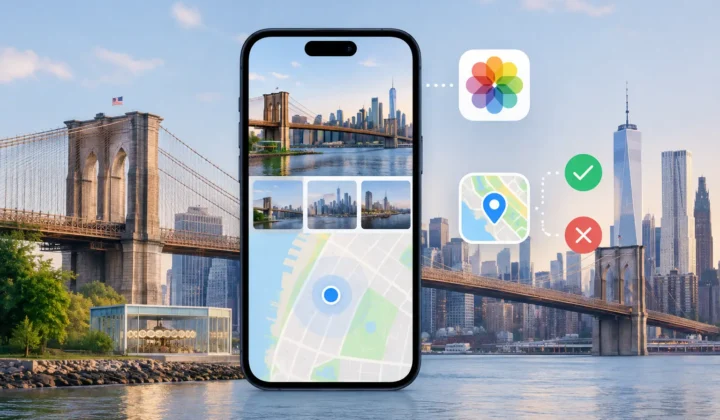
A good review interface should make these facts easy to see. You should be able to inspect the nearby photos, their times, their mapped locations, and the size of the gap without leaving the task to reconstruct the story from memory.
Group photos only when the evidence stays consistent
Indoor photos often arrive in clusters. You may have 40 pictures from a wedding reception, a museum visit, or a long dinner. Applying a location one image at a time is tedious, but assigning one pin to an entire cluster is only appropriate when the surrounding evidence remains consistent.
For example, a series of photos from 6:10 to 8:45 p.m. between two anchors at the same reception venue may reasonably belong together. A group spanning noon to midnight should prompt more caution, even if the day began and ended at the same hotel. People move. Metadata should reflect that possibility.
Grouping is therefore a review convenience, not a license for broad assumptions. The group should communicate why its proposed location is supported and let you split it when the sequence contains a change of venue.
Check the clock before trusting the map
Time is central to location inference, which makes camera-clock errors especially consequential. A dedicated camera set to the wrong time zone, or simply drifting over months, can make a correct location look implausible. A photo taken at lunch may appear beside dinner photos, leading an automated process toward the wrong anchor.
Look for a consistent offset. If a camera’s images repeatedly appear exactly one hour or several hours away from the related iPhone photos, the issue may be the camera clock rather than the travel timeline. Correcting that offset can realign a whole import with the right part of the day.
This is also where automatic behavior deserves restraint. A system should identify the pattern and let you review the correction. It should not silently rewrite timestamps or use an uncertain clock alignment as the basis for precise location edits.
Use manual placement for known exceptions
Sometimes you know exactly where a photo was taken, but the timeline cannot demonstrate it. Perhaps every nearby photo is also untagged, or the image came from a scanned album. In that case, manual location entry is the honest solution.
Manual placement works best when you add only the precision you actually know. If you remember that a photo was taken in Boston but not which neighborhood, a city-level location may be more faithful than selecting a specific restaurant from a vague recollection. If you know it was your childhood home, use the address only if you are comfortable storing that detail in the library.
There is no need to force every image onto a map. Leaving a photo untagged is a valid outcome when the evidence is missing and memory is uncertain.
A private workflow for correcting photo metadata
For a personal library, the method matters as much as the result. Your photos can contain faces, homes, routines, and years of family history. A location-repair workflow should not require cloud uploads, an account, or a remote service to inspect that information.
Photo Geotag is built around an on-device review process for iPhone, iPad, and Mac. It scans for untagged images between located photos, presents grouped proposals with visible evidence and certainty states, and waits for confirmation before writing changes. When a pin cannot be justified, the app does not present one as fact. You can edit a proposed location manually, and changes are journaled so they can be undone.
That approach is especially useful for mixed libraries: iPhone images next to scanned prints, AirDropped files, and imports from a GPS-free camera. Each source may have a different kind of gap, so a single blanket rule is rarely right.
Review before you apply
The final pass should be deliberate. Confirm that the proposed place matches the images, not just the timestamps. Check whether a run of photos includes a transition from one venue to another. For imported camera files, verify that the clock alignment remains plausible across the whole session.
Then apply only the changes you can stand behind. Accurate metadata makes photos easier to find, but its larger value is quieter: years from now, a location pin can help a memory return with the right setting, rather than a convincing but incorrect one.