
A camera clock that is off by five hours can make a perfectly documented trip look impossible: breakfast appears after the airport, sunset precedes lunch, and images from two cameras refuse to line up. To fix wrong timestamp on camera photos, the goal is not simply to change a date field. It is to restore the real sequence of events without creating a new problem in the library.
This matters most when camera files are used as evidence for other metadata. A photo’s capture time can help place GPS-free images between nearby, geotagged iPhone photos. If that time is wrong, a location proposal may be wrong too. Correcting the clock first turns a confusing timeline into one that can be reviewed honestly.
First, identify which time is actually wrong
Photos can carry several dates. The one that usually matters is the capture timestamp stored in the image metadata, often called DateTimeOriginal in camera files. This is different from the date a file was imported, downloaded, edited, or added to Apple Photos.
Start by comparing several camera photos with events you can identify independently. A photo of a departure board, a restaurant receipt, a wedding ceremony, or a phone photo taken moments later can provide a useful reference. Do not base a correction on one ambiguous image. A single incorrect comparison can shift an entire shoot in the wrong direction.
Look for a consistent pattern. If every image from a Canon, Nikon, Sony, or Fujifilm camera is exactly four hours early, the explanation is likely a camera clock set to a different time zone. If the difference grows gradually over months, the camera clock may have drifted. If only a small section of a card is wrong, the clock may have been changed during the trip.
A consistent offset is comparatively safe to correct. An inconsistent pattern calls for more care.
Separate clock offset from time zone behavior
A timestamp can appear wrong even when the camera recorded the intended local time. Travel is the usual reason. Dedicated cameras commonly store a simple local clock value without a time zone. Phones may record time zone information and display photos according to the current device settings. Once images reach a library, two photos taken at the same moment can appear separated by hours.
Before changing anything, decide what you want the corrected time to represent: the local wall-clock time at the moment of capture, or a normalized absolute time that aligns across time zones. For most personal photo libraries, consistent chronological order is the practical priority. For travel archives, preserving the local time of the place where the photo was taken can also be meaningful.
There is no universal answer. What matters is applying one deliberate rule to a related set of images, rather than correcting individual photos until the timeline merely looks plausible.
Use anchor photos, not memory alone
The strongest anchors are photos with reliable timestamps and known context. An iPhone photo taken beside the camera image is useful. So is a geotagged image from the same walk, meal, or viewpoint. Compare the content as well as the clock. A four-minute difference between similar frames may reflect normal shooting. A six-hour difference likely indicates a clock or time zone issue.
When possible, test the proposed adjustment at the beginning, middle, and end of a shoot. If a minus-four-hour correction makes all three sections line up with known events, that is meaningful evidence. If it fixes the morning but breaks the evening, stop and split the set into smaller groups.
Make a reversible correction before organizing by location
A timestamp correction should be reviewable and reversible. That is especially important in an existing Apple Photos library, where a date change can affect Memories, sorting, albums based on date, and the apparent order of related images.
Work on a defined group: one camera, one trip, or one continuous session. Avoid selecting every photo from a year because a few are out of order. A camera can be reset after a battery change, handed to another person, or used across trips without its clock being updated.
Before applying the change, note the original range and proposed offset. For example: “Fujifilm Iceland trip, June 4-11, camera clock is three hours ahead.” This simple record makes later review much easier, particularly when several cameras were involved.
Then inspect the result in timeline order. The corrected images should fit naturally around phone photos and other known anchors. They should not jump ahead of the flight that brought you there or appear at home while the rest of the library shows a museum visit.
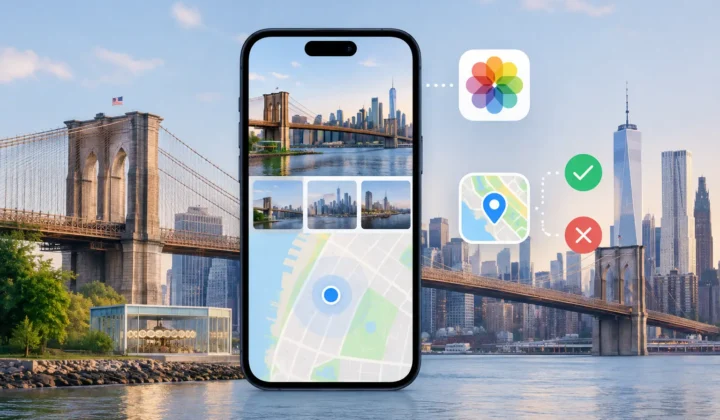
Photo Geotag treats this sequencing as evidence, not decoration. When it detects a likely camera-clock offset, it can present the relationship between untagged camera images and nearby geotagged anchors for review. The app does not need to invent a location simply because a photo falls near another on the timeline.
Correct the clock before asking for a location
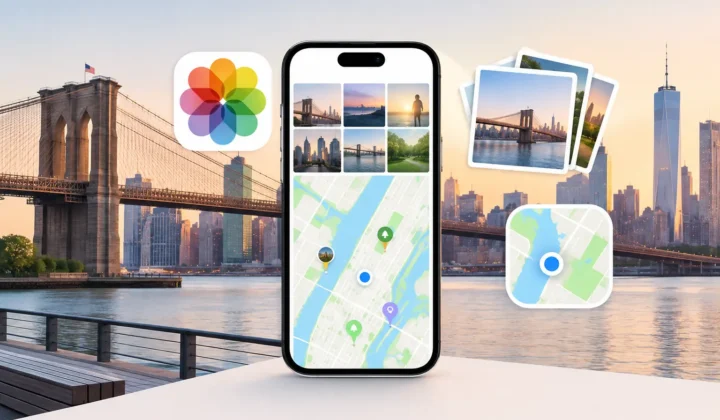
Wrong timestamps and missing GPS metadata often arrive together. A dedicated camera may have no GPS receiver, while an iPhone photo taken just before or after it has a reliable location. When their times are aligned, the neighboring phone photos can support a reasonable location proposal for the camera images.
But timing alone is not proof. A camera image taken two minutes after a geotagged photo may reasonably belong at the same trailhead if the visual context matches and the timeline is continuous. A camera image six hours later should not inherit that location just because it is the nearest available pin.
This is where grouped review is safer than bulk automation. A useful workflow should show the anchor photos, the time gaps, the proposed location, and the degree of certainty. It should also leave room to edit the location manually or decline the proposal entirely.
Never treat a corrected timestamp as permission to fill every missing location. It only makes the available evidence easier to assess.
Common cases that need different treatment
A single fixed offset is the easy case, but real libraries are rarely that tidy. These situations deserve separate handling:
- Daylight saving changes: A camera may be correct before a seasonal clock change and one hour off afterward. Split the photos at the transition rather than applying one offset across the full date range.
- Multiple cameras: Each device may have its own error. Match files by camera model or import batch, then verify each clock independently.
- Scanned prints: A scan date is not the date the original photo was taken. If the original date is known only approximately, use a conservative date rather than fabricating a precise time.
- Messaging and AirDrop copies: Received or saved images may show the date they were transferred, not captured. Check whether original metadata survived before changing anything.
- Long events: At weddings, concerts, or full-day hikes, location can legitimately change while the camera clock remains consistent. Time correction does not make every image part of one location group.
Keep the original story intact
The best timestamp correction is almost invisible. Afterward, the photos appear where they always belonged: the camera frames sit beside the phone snapshots, the travel day follows a believable order, and location review has better evidence to work from.
Resist the urge to force precision where the record cannot support it. If you know a roll of scanned family photos was taken in summer 1987 but not the day, preserving that uncertainty is more faithful than assigning a convenient afternoon. If two possible clock offsets are equally believable, keep reviewing anchors instead of choosing the one that produces the neatest map.
Your photo library is not just a filing system. It is a record of where memories happened and in what order. Give every correction enough evidence to deserve its place there.