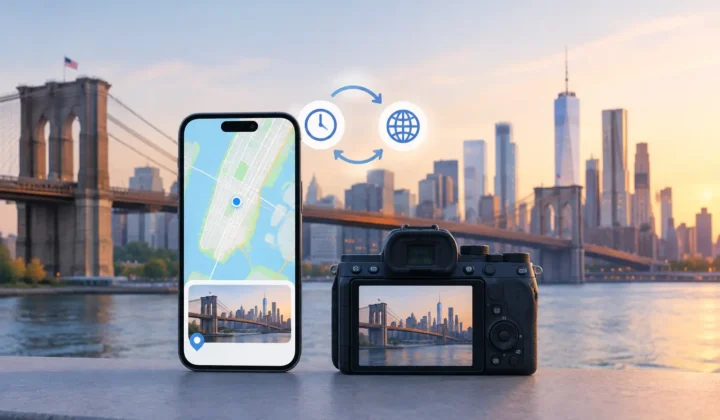

A photo can still look perfectly intact while its most useful context has changed. The image remains, but the date reflects an import rather than the moment it was taken, the location is absent, or the camera details no longer travel with a copy. Apple Photos metadata preservation is therefore not a simple yes-or-no question. It depends on where the metadata lives, what action you take, and how you move the photo afterward.
For a large personal library, that distinction matters. A picture of a child at a beach, a scanned family print, and a RAW file from a dedicated camera can all appear beside each other in Photos. Yet each may carry a different kind of evidence about when and where it belongs. Preserving that evidence requires more than keeping the image file.
What Apple Photos preserves inside your library
Apple Photos maintains a library database alongside the photo and video assets it manages. Information such as adjusted capture date, assigned location, captions, keywords, favorite status, albums, faces, and edits can be stored as part of the Photos library even when it was not originally embedded in the image file.
That is helpful because Photos lets you correct mistakes without rewriting your source file in every case. You can change a date, add a location, or adjust an image, then return to the original later. From a library-management perspective, these edits are generally reversible.
But reversibility within Apple Photos is not the same as universal portability. The original JPEG, HEIC, RAW, or video file may contain its own embedded metadata, commonly EXIF, IPTC, XMP, or QuickTime fields. A Photos edit can exist in the library’s own records rather than replacing every corresponding field in the original asset. Whether a corrected date or place appears elsewhere depends on how you export or share the item.
This is the central trade-off: Apple Photos is designed to protect your working library and preserve editing flexibility. If your goal is to create a durable file that carries its corrected context into another app, archive, or system, you need to verify the export behavior as well.
The metadata that is easiest to lose
Not all metadata faces the same risks. Capture date and time, location coordinates, camera model, lens information, orientation, copyright fields, captions, and keywords may be handled differently by different apps and sharing methods.
Location is particularly vulnerable because it is often intentionally removed. Sharing workflows can offer an option to omit location for privacy. Messaging platforms may strip it automatically. A screenshot is a newly created image with its own metadata history, not a faithful archival copy of the original photo. A saved image from a chat may retain pixels but lose the coordinates and camera information that once gave those pixels context.
AirDrop is often better for preserving originals, but the result still depends on the receiving workflow. Sending an actual file, exporting an unmodified original, and saving a rendered image are different operations. Treating them as interchangeable is where many libraries become inconsistent over time.
Scanned prints present a different issue. There may be no original digital metadata to preserve at all. The scan has a creation date, but that usually describes when the scanner made the file, not when the photograph was taken. In that case, the task is not preservation alone. It is careful restoration of historical context.
Apple Photos metadata preservation during edits and exports
A useful rule is to separate three questions: What does Photos know? What is embedded in the source asset? What will the recipient receive?
Inside Photos, open an item’s information panel and inspect the date, time, location, caption, and camera details. This tells you what the library currently associates with that item. It does not, by itself, prove that every field is embedded in the original file or that every field will survive a particular export route.
When exporting, the choice between an unmodified original and an edited version matters. An unmodified export prioritizes the source asset. That is usually the right choice when you need the original image data and whatever metadata it already contained. An edited export creates a new rendered file based on your Photos adjustments. It may be appropriate when the visual adjustment is part of the deliverable, but it is not automatically a complete metadata mirror of your library record.
This does not mean edited exports are unsafe. It means the requirement should be explicit. If a location, adjusted capture date, or caption must accompany a file outside Photos, export a small test set and inspect the resulting files in the destination application before processing an archive of thousands.
The same caution applies to shared albums, third-party storage apps, social platforms, and print services. Some retain dates but remove GPS coordinates. Some preserve pixels at reduced quality. Some create copies whose visible filename or file creation time has no useful relationship to the original event. The correct workflow depends on the destination, not on a general promise that metadata will be preserved.
Originals are not the whole story
Keeping originals is essential, but an original can be incomplete. Photos taken indoors may have no GPS lock. Images from Canon, Nikon, Sony, or Fujifilm cameras may have excellent exposure and lens data but no location data. Photos saved from WhatsApp or another messaging app may arrive without the metadata they once had.
An original preserves the truth of the original asset. It cannot preserve information that was never there, or restore information stripped before the asset reached your library. That is why a strong preservation practice keeps original files while also recording justified corrections in the library where you organize and search your memories.
Treat date and location corrections as archival work
A corrected date or location can make a library dramatically more useful. Search becomes reliable. A trip appears in the right place. A family event falls in the right year. Yet these changes deserve a higher standard than convenience alone.
A four-minute gap between two geotagged photos can be meaningful evidence. If an untagged indoor image sits between photos taken at the same restaurant entrance and table, assigning that location may be justified. A six-hour gap between two locations is different. The missing photo could have been taken anywhere along the route, or at an entirely unrelated stop. A pin would be a guess, even if it looks plausible.
The same applies to camera-clock errors. A dedicated camera set to the wrong time can cause a series of otherwise accurate photos to appear hours ahead of or behind the phone photos that provide geographic anchors. Correcting that offset may reveal a coherent sequence, but it should be based on visible corroboration rather than an assumption that the camera clock was right.
Photo Geotag is built around this distinction. It scans for untagged photos between location-bearing neighbors, groups proposals for review, and communicates when the available evidence is strong, weak, or insufficient. It processes the library on device, does not require an account or cloud upload, and does not silently apply a location it cannot justify. The user confirms each supported change and can adjust it manually when personal knowledge is better evidence than the timeline.
A preservation workflow that holds up over time
Begin with the library you use every day. Confirm that iCloud Photos, if you use it, has finished syncing before making a large set of changes. Avoid attempting a cleanup while the library is still importing, downloading originals, or reconciling another device’s edits.
Then work in small, reviewable groups. Start with a trip, a scan batch, or a camera import rather than selecting every untagged photo in the library. Review the neighboring images, their timestamps, and their known locations. For historical scans, use family records, handwriting, landmarks, or event dates where available. When the evidence is uncertain, leave the field blank or add only the information you can defend.
After applying corrections, verify a representative sample in Photos. Check that the photos appear in the expected place and time. If you need to send files elsewhere, export a test copy and confirm what accompanies it. Keep a separate backup of original files and maintain the Photos library backup strategy appropriate to your setup. A backup is not just protection against deletion. It is a way to preserve the option to revisit earlier decisions.
Be equally deliberate about privacy. Location data can reveal a home, school, workplace, or travel pattern. Preserve it in your private library when it helps organize your history, then choose sharing settings based on the recipient and purpose. Preservation and disclosure are separate decisions.
A well-kept photo library does not need every image to carry a pin. It needs each date, place, and caption to mean what it says. When the evidence supports a correction, record it carefully. When it does not, an empty field is more honest, and more useful, than a confident-looking mistake.