A photo taken at 8:15 PM in Tokyo should not appear in your library as a 4:15 AM photo from the previous day. Yet that is exactly what can happen when you sync camera clock timezone incorrectly, or when a dedicated camera was left on home time during a trip. The image itself may be perfectly intact, but its timestamp no longer lines up with the location evidence around it. For geotagging, that difference is consequential.
A camera clock offset is not the same as a missing location. It is a mismatch between the time recorded in a file and the local time when the shutter was pressed. Correct the mismatch carefully, and GPS-tagged photos from an iPhone can provide meaningful anchors for nearby camera images. Ignore it, and a reasonable location proposal can shift across a flight, a hotel stay, or an entire day of travel.
Why camera clock timezone affects geotagging
Most dedicated cameras record a date and time but do not record a timezone in a way photo libraries can reliably use. A Canon, Nikon, Sony, or Fujifilm camera may store the local clock time it was set to, whether that clock was accurate, wrong by an hour, or still set to the time at home.
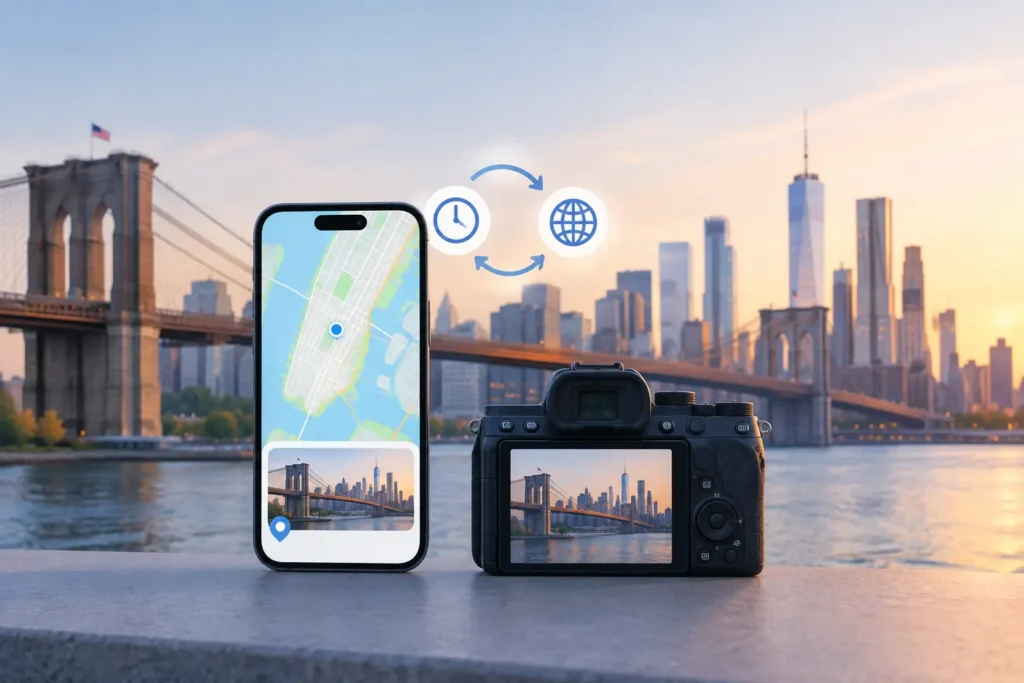
Your iPhone works differently. Its timestamps generally reflect the time and timezone available to the device at capture. When you import both sets of photos into Apple Photos, the library has to place them on one timeline. If the camera was six hours behind, its images may appear six hours away from the iPhone images taken beside them.
That matters because location inference depends on sequence. Imagine you photographed breakfast in New York with your phone at 9:00 AM, then used a GPS-free camera at 9:04 AM. A four-minute gap with matching visual context can support a tightly justified proposal. If the camera file says 3:04 AM because its clock remained on Pacific Time, it no longer belongs near that breakfast anchor. The same photo could be grouped with unrelated overnight images instead.
Find the real camera-clock offset first
The safest approach is to establish an offset from evidence, not from what you think the camera setting probably was. Travel is especially prone to assumptions: a camera might have been adjusted halfway through a trip, changed for daylight saving time, or set incorrectly by a few minutes as well as by whole hours.
Start with a recognizable moment captured by both devices. A family photo, a landmark, a meal, or an event entrance works well. Compare the camera image with the iPhone image, then determine how far apart their recorded times are. Repeat that check with another pair from the same period.
If both comparisons show the camera is exactly five hours behind, you have a useful correction. If one pair indicates five hours and another indicates four, do not apply a single offset to the whole import yet. You may have crossed a timezone, daylight saving time may have changed, or the camera clock may have been reset.
Use anchors that can actually support a decision
An anchor photo is a photo with a trustworthy time and location. It is more useful when it is close in time to the camera image you want to place. A phone photo taken at an airport at 2:00 PM can help identify the correct portion of a travel day, but it should not automatically locate every camera image taken six hours later in a different city.
Look for consistency across several nearby images. The goal is not to make every timestamp look tidy. The goal is to make the timeline truthful enough that it reflects the order in which the photos were made.
Watch for daylight saving time and multi-stop trips
A one-hour discrepancy often points to daylight saving time. It can also mean the camera was updated for one part of a trip but not another. A larger, exact difference usually suggests that the camera remained on a previous timezone.
For a trip through several timezones, divide your photos into periods rather than treating the entire card as one batch. A correction that is right for the first week can be wrong after a flight. This is one of the cases where manual review is not extra caution. It is the only way to avoid creating a misleading timeline.
A careful workflow to sync camera clock timezone
Before changing anything, preserve the distinction between timestamp correction and location assignment. They solve related problems, but they are not interchangeable. Adjusting the clock changes when a photo appears to have been taken. Geotagging adds or edits where it was taken. Each change deserves its own evidence.
First, import the camera files and identify the date ranges that need attention. Keep a small note of the suspected offset for each range, such as “Japan portion: camera is 14 hours behind” or “March 10 onward: camera is one hour ahead.” This prevents a correction meant for one trip segment from spilling into another.
Next, compare camera photos against location-tagged phone photos at a useful timeline scale. When the images fall into a coherent sequence after applying the proposed offset, inspect the surrounding anchors. Do the locations make sense for the day? Is the gap only minutes, or is there an unexplained flight, drive, or overnight break between them?
Then review the location proposals as groups, not as isolated pins. A group of camera images between two geotagged photos from the same museum has stronger support than a single image between two distant places. A proposal should show its basis clearly: nearby anchor photos, the corrected temporal position, and the confidence that follows from those facts.
Photo Geotag is designed for this review step. It can identify likely camera-clock offsets and show untagged photos in context with the geotagged images around them. It processes the library on device, presents proposed groups for confirmation, and does not silently turn an uncertain timeline into a precise location claim.
Finally, apply only the changes you have reviewed. A journal of writes and reliable undo matter here. Metadata may be less visible than pixels, but it shapes how future searches, map views, shared albums, and family archives describe a memory.
When not to correct the clock
There are times when the correct answer is to leave the timestamp alone. If there is no trustworthy comparison photo, no known event time, and no repeated offset pattern, changing the camera clock would be speculation. A photo can still be manually assigned a location if you know where it was taken, but that does not prove its exact capture time.
The same restraint applies to broad gaps in a timeline. A camera image between a geotagged photo from Los Angeles at noon and one from San Francisco at 8:00 PM could have been taken in either city, on the road, or somewhere else entirely. An eight-hour interval is not equivalent to an eight-minute interval. The app should communicate that uncertainty, and the user should retain the final decision.
Also avoid “fixing” timestamps merely because they look odd in Apple Photos. Some photographers intentionally set a camera to a reference timezone so multiple bodies stay coordinated. That arrangement may be inconvenient for map-based organization, but it can be deliberate. Confirm the intended workflow before rewriting dates.
Treat corrected time as archival metadata
A camera clock is easy to overlook until it separates a child’s birthday photos from the party, moves vacation images onto the wrong day, or breaks the evidence needed to recover a missing location. Correcting it can restore the story around a photo, but only when the correction is supported.
Work in small, verifiable ranges. Compare more than one anchor. Account for flights and daylight saving time. And when the timeline cannot justify a confident placement, leave room for uncertainty. Your photo library is not improved by a cleaner-looking answer that cannot be defended later.