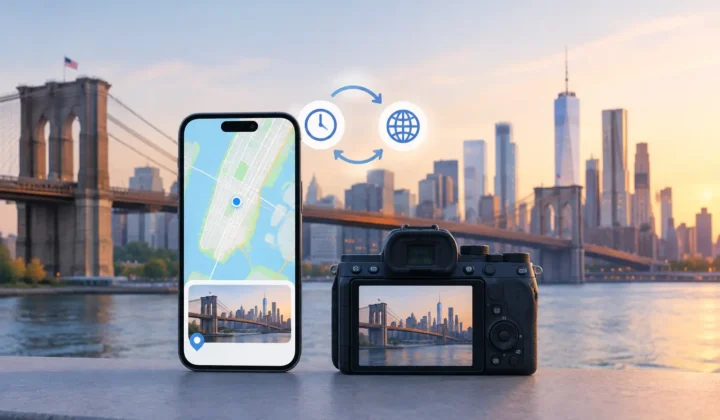

A photo can be visible in your library, correctly dated, and backed up, yet remain absent from Places. When you search a city or browse the map, it is simply not there. If Apple Photos map missing pictures is the problem, the usual cause is more ordinary than a damaged library: those images do not contain usable location metadata.
That distinction matters. Apple Photos can display and organize a location it has been given, but it cannot reliably reconstruct a place from pixels, a filename, or the fact that a photo sits near other images in your library. A blank map result is often Photos being appropriately cautious, not Photos losing the picture.
Why Apple Photos Map Missing Pictures Happens
Photos places images on the map using location information stored with the image. Usually, that means GPS coordinates captured by an iPhone or added later. If the coordinates are absent, Apple Photos still keeps the image in its date-based library, albums, memories, and search index where applicable. It just has no justified pin to show.
This commonly happens after a photo changes hands or comes from a device that did not record GPS. Scanned family prints have no original coordinates. Images saved from WhatsApp or other messaging apps may arrive without the location information attached to the original. AirDrop can preserve metadata, but the result depends on how the image was exported or shared before it reached your device.
Dedicated cameras introduce a similar gap. Canon, Nikon, Sony, and Fujifilm files often record precise capture time but not a location unless a GPS accessory, companion app, or separate track was used. Indoor iPhone photos can also be missing a location when the phone could not establish a GPS or Wi-Fi position at capture time.
A missing map pin is therefore not one problem with one fix. The right approach depends on what evidence survives alongside the photo.
First, Check Whether the Location Is Actually Missing
Before changing anything, open one of the absent images in Photos and view its information panel. Look for a location name or map preview. If neither appears, the file likely has no location assigned in your photo library.
If a location does appear, but the photo is not where you expect on the map, check the capture date and time next. An incorrect camera clock can make a valid location look implausible when you compare it with nearby iPhone photos. A camera set six hours ahead during a trip, for example, may place its images in the wrong part of a day even if you later try to match them to a location track.
Also compare the behavior across devices. If a location is visible on your Mac but not yet on an iPhone or iPad, allow the library time to synchronize and confirm that the same photo library is in use. That is a synchronization question, not a metadata-recovery question.
When the information panel is blank across devices, the more useful question becomes: can the surrounding photos support a location without guessing?
Use the Timeline as Evidence, Not a Shortcut
The best clues are often already in your library. Consider an untagged image taken at 2:04 PM between two iPhone photos, one at 2:02 PM and another at 2:06 PM, both located at the same museum. That short interval provides meaningful support for placing the untagged image there, especially if the images show the same outing.
Now consider another image captured between two geotagged photos six hours apart. The first is at an airport in Denver; the second is at a hotel in Chicago. The image may be from either city, from the flight, or from somewhere else entirely. Assigning a precise pin based only on its position in the timeline would be unsupported.
This is the central trade-off in restoring photo locations. Automation can save a great deal of manual work, but only if it communicates what it knows and what it does not. A map full of plausible-looking pins is not necessarily an accurate map.
For a small set of images, manually editing the location in Apple Photos may be the best choice. It is direct and appropriate when you know the place. The drawback appears at scale: hundreds of scans, camera imports, or message saves quickly become a repetitive process, and it becomes difficult to remember why each location was chosen.
Restore Missing Locations in Reviewable Groups
For larger gaps, start by identifying a clear time range: a vacation, an event, a camera import, or an afternoon of scanned prints. Then separate images that have strong nearby anchors from those that need independent research.
A careful workflow has three stages: scan, confirm, and apply.
Scan for gaps between known locations
Look for untagged images positioned between photos that already have locations. The neighboring images are anchors. Their timestamps and coordinates establish whether a proposed place is supported by a continuous sequence or merely adjacent in a broad date range.
This matters particularly when a dedicated camera and an iPhone were used during the same day. The iPhone photos may provide the geographic record, while the camera images provide the higher-resolution shots. If their clocks align, the iPhone images can serve as evidence for groups of camera files.
Confirm the proposal and its certainty
Review proposals as groups rather than one image at a time. A good review view should show the proposed place, the anchor photos, the time interval, and an explicit indication of certainty. It should also make uncertainty visible rather than burying it behind a default selection.
Photo Geotag follows this approach by scanning the local library for untagged timeline gaps and presenting grouped proposals for review. It distinguishes evidence that supports a placement from evidence that does not, detects likely camera-clock offsets, and allows manual edits when the proposed location needs correction. It never silently guesses.
A clock correction can be especially valuable for imported camera files. If a camera was consistently three hours behind, a system should identify the repeating offset before attempting any matching. Without that correction, even good anchor photos can produce bad results.
Apply only the locations you accept
Once you have reviewed a group, apply the change only after explicit confirmation. The location should be written to the photo library, not held behind an account or processed on a remote server. For a personal photo library, the privacy consequence is not abstract: location history can reveal homes, schools, routines, and travel patterns.
Keep the work reversible. A journal of applied changes gives you a way to review what was edited and undo it if a later discovery changes the evidence. This is particularly helpful for family archives, where a relative may identify a scanned photo years after an initial estimate was made.
When You Should Leave a Picture Off the Map
Some photos should remain unlocated until better evidence appears. A scanned print labeled only “summer,” an isolated image from an unknown camera roll, or a file between distant locations does not become more truthful because it receives a pin.
You can still preserve useful context without claiming precision. Add a caption, place the image in a named album, record an approximate year, or wait until you can compare it with travel records, contact sheets, or other family photos. A manually chosen city can be appropriate when you know it, but it should represent your knowledge, not an automated assumption.
The goal is not to make every blank space on the Apple Photos map disappear. It is to make the map dependable enough that a search for a trip, a neighborhood, or a family home brings back memories that genuinely belong there.
When you restore a location, treat the pin as part of the photograph’s record. A justified placement adds context for decades of future searching. An unsupported one can quietly rewrite it.